Sign in to the site
A [genuinely] useful trip planner
Free, no in-app purchases, no email address required, no mailing lists, no ads, full functionality without registration.
What is this?
This is a genuinely useful app for travellers and for people who travel on business. Really.
Do you need it?
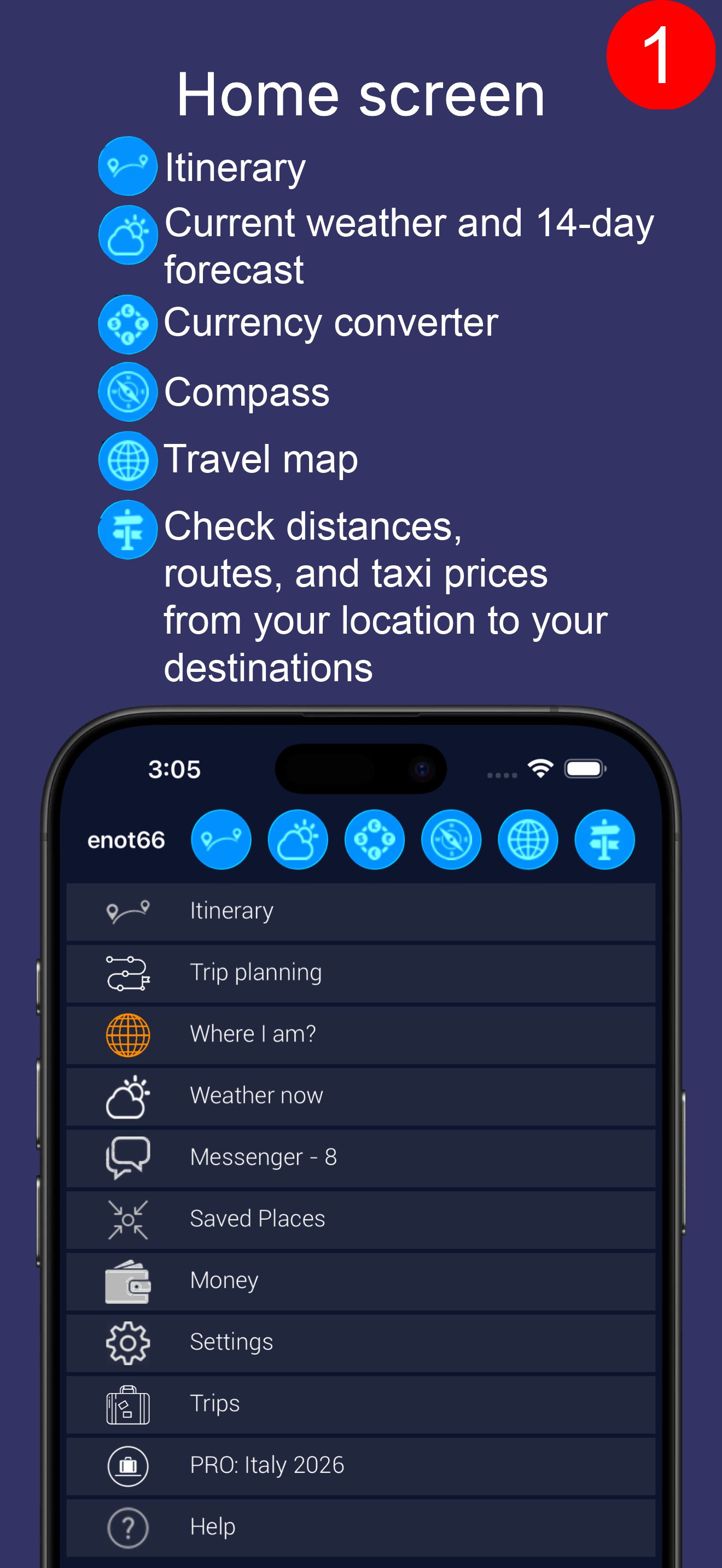
Let us start with the home screen.
On the toolbar - shortcut buttons:
 |
The overall trip itinerary |
 |
Today's weather and a 14-day forecast for wherever you are. |
 |
Currency converter |
 |
Compass |
 |
A map of the trip centred on where you are right now. The map helps you picture the geography of the trip. |
 |
Routes - checking distances, routes, times and taxi fares from you to the objects in your trip. |
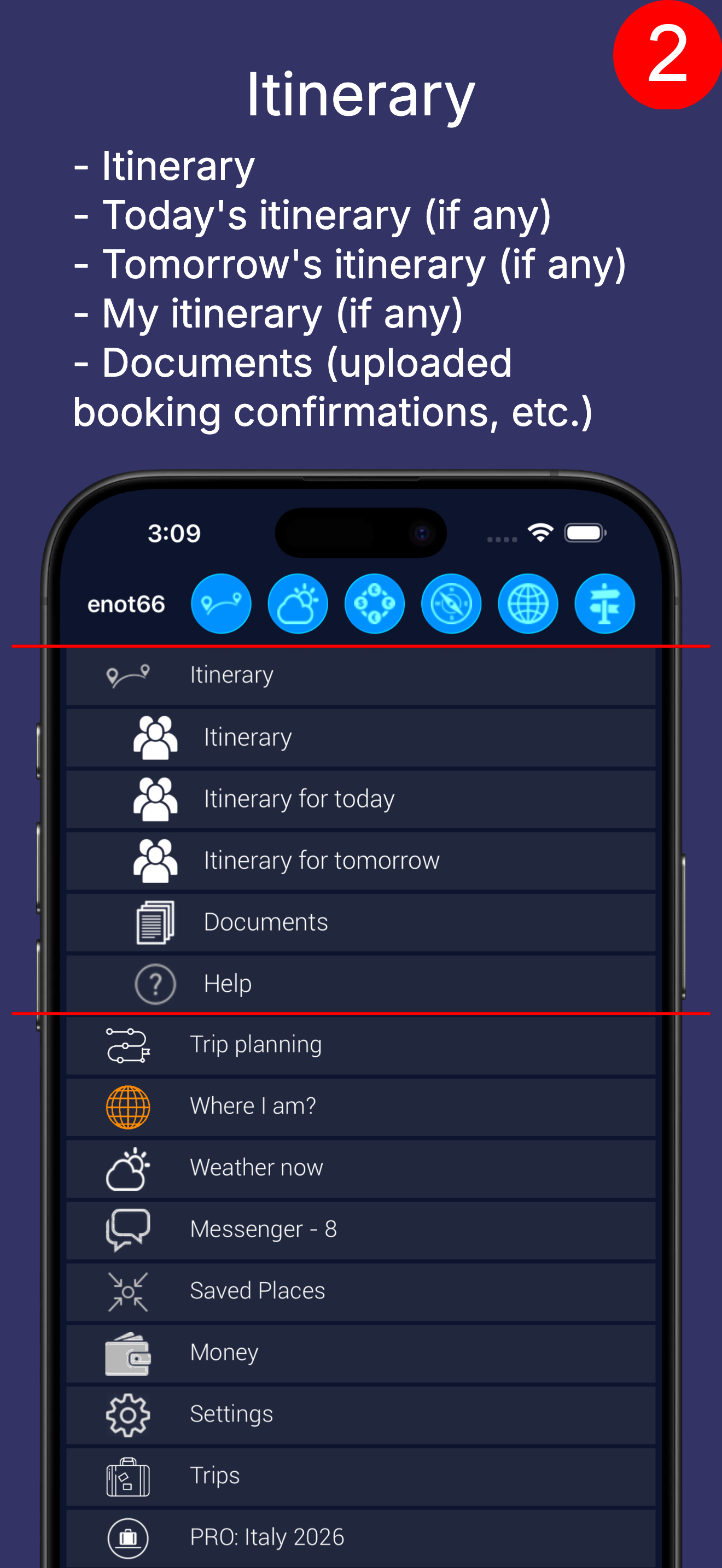
The trip itinerary.
You can look at the whole itinerary, today's, tomorrow's, or personal itineraries if there are any. And documents, if you have uploaded them (booking confirmations, for example).
When people travel on business, their routes often do not coincide completely. One of them flies out of Rome, say, and another out of Milan.
If you do not create personal itineraries, everyone's itinerary will show both their own flight and the other person's.
If you do not want that, then on the trip itinerary screen (below) tap the flight, and on the flight description screen choose "Edit" from the menu and set who is on that flight.
You will then get extra entries: "Itinerary (me)", "Today's itinerary (me)", "Tomorrow's itinerary (me)" where applicable. The shared itinerary will show both flights, while "Itinerary (me)" shows only yours.
If nobody is set, or everybody is, the app assumes everyone is flying. The same naturally applies to any object in the trip - hotels, attractions and so on.
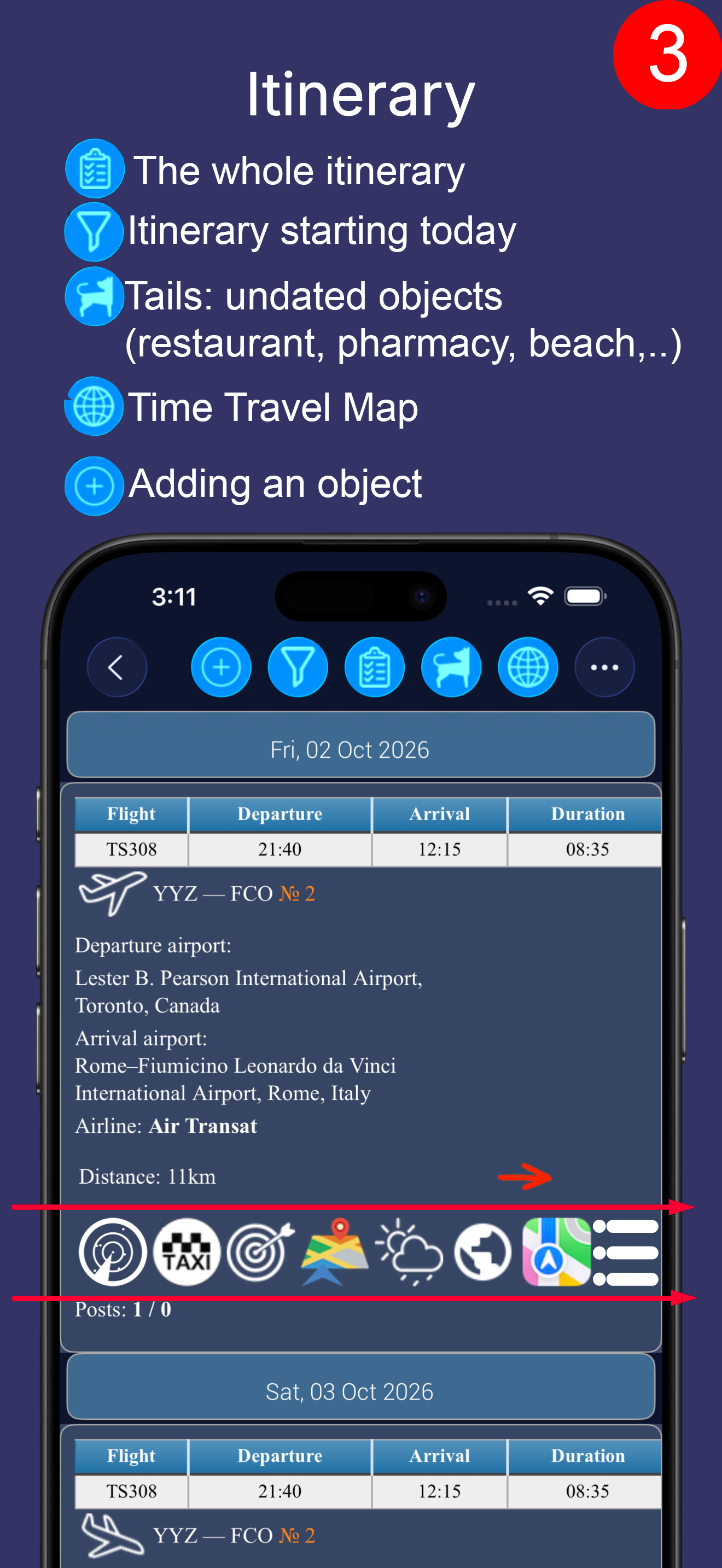
The itinerary can be viewed in several ways:
 |
The whole itinerary. While planning it is easier to see the trip as a whole. |
 |
The itinerary starting from today. This view is more convenient once the trip is under way. |
 |
Loose ends - objects with no date attached (a beach, a pharmacy, a petrol station and so on). In the other views they sit right at the bottom, under "Objects without dates". |
 |
Hide flight connections (from the menu). You can hide connecting flights so that the list of objects is less cluttered. |
 |
Show flight connections (from the menu). |
 |
You can add objects to the itinerary (flights, hotels, car rentals, attractions, buses, trains, transfers, restaurants and so on) |
 |
A map of the trip. This helps you picture the geography of your trip, how the objects sit relative to one another, and the distances involved. |
In this example you see part of a trip itinerary: departure from Toronto on Friday 2 October, arrival in Rome on 3 October (partly shown).
On each cell you see a short description of the object, the distance to it and the direction: right now, for instance, the airport is 11 km to the east of you.
Tap a cell and you get information about the object and a great many ways to explore it (from the screen menu). The menu is described below, under "Detailed description".
Note the icons on the trip object cell, marked out with red lines. Below we explain what they are.
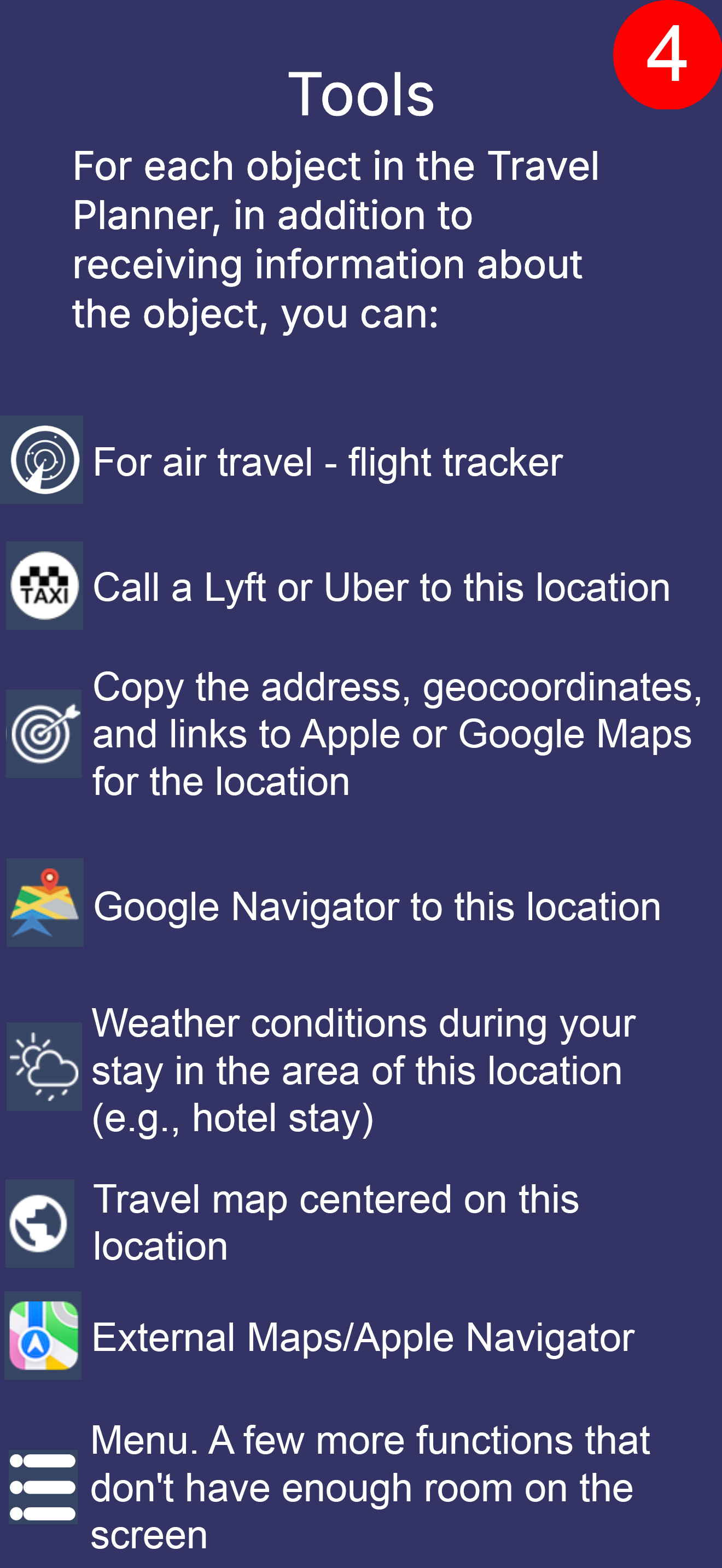
What you can do with every object
 |
A flight tracker for flights. Flight status before, during and after the flight. |
 |
Call a Lyft or Uber to take you to this object (if you have the Lyft or Uber app installed). |
 |
The coordinates and address of the object, to use in other taxi apps for example. |
 |
Google navigation with this place as the destination. |
 |
The weather forecast for the time you will be at this place. For the day of your flight, say, or for your stay at a hotel. |
 |
A map of the trip centred on this object. |
 |
An external map (Apple or Google, depending on the platform). |
 |
Menu. This holds what would not fit on the cell - Google Street View; a Google search; the weather here now and the 14-day forecast; cities around; a search for other things near this one (restaurants, petrol stations, cash machines, beaches, parks, attractions and so on); routes - not from you this time, but from this object; the weather right now; photographs taken in the area around this place. |
So for every object in the itinerary you have 14 functions one click away, or two by way of the menu. And of course, if you tap the cell itself, you get the object description and a little more besides.
And this is only the itinerary screen, which is a small part of what the app can do.
If you are interested, you can find more detail about the app below.
For business travel
Suppose you need to visit three places in one day. How do you plan the time? Use "Routes". Say you are staying at a hotel: find it in the itinerary. From the menu on the hotel cell choose "Routes". There, find place no. 1 that you need to visit. Open navigation (or a taxi) from the cell for place no. 1. It will show you the route from the hotel to place no. 1.
Now, in "Routes", on the cell for place no. 1, choose "Routes" again.
In the window that opens, find place no. 2 and open navigation or a taxi. You have probably guessed by now that you will see the route from place no. 1 to place no. 2.
That way you can picture how long it will take you to move between meetings.
Suppose you have time for lunch between visiting places no. 1 and no. 2. It is probably easier to eat somewhere near place no. 1 or place no. 2.
In the itinerary, on the cell for place no. 1, choose "Search around" from the menu. In the window that appears choose "Restaurants". Now, in the restaurants window, open the filter (on the toolbar) and tick, say, "Italian", "Mexican", "Peruvian".
Besides the description in the app there will be a link to the information provider. There will also be a Google search for that restaurant.
The objects you find (restaurants, in this case) can be added to the trip itinerary. And if you are standing next to place no. 1 right now - call a taxi, or open navigation, to take you there.
People who travel often may also want to look at the app's PRO mode. It is free as well, offers extra functionality and works to a slightly different logic.
PRO mode is described further down this site.
Frequently asked questions
Platforms
You can install the app for iOS or Android, or use the website.
The website helps with planning only, because travel assistance depends on where you physically are, and people do not usually walk around holding a computer.

Web
Planning
The website is not designed for mobile devices and does not support the travel assistance features. Please use the mobile app for your platform instead.

Android
Planning and travel assistance



iOS
Planning and travel assistance


Sign in to the site
The website is not designed for mobile devices and does not support the travel assistance features. Please use the mobile app for your platform instead.