Sign in to the site
Install the app
The website is not designed for mobile devices and does not support the travel assistance features. Please use the mobile app for your platform instead.


The menu on the object description screen
For every object in a trip (a flight, a hotel, an attraction and so on) you can open a description screen. It has a menu that helps you explore the object and the space around it.
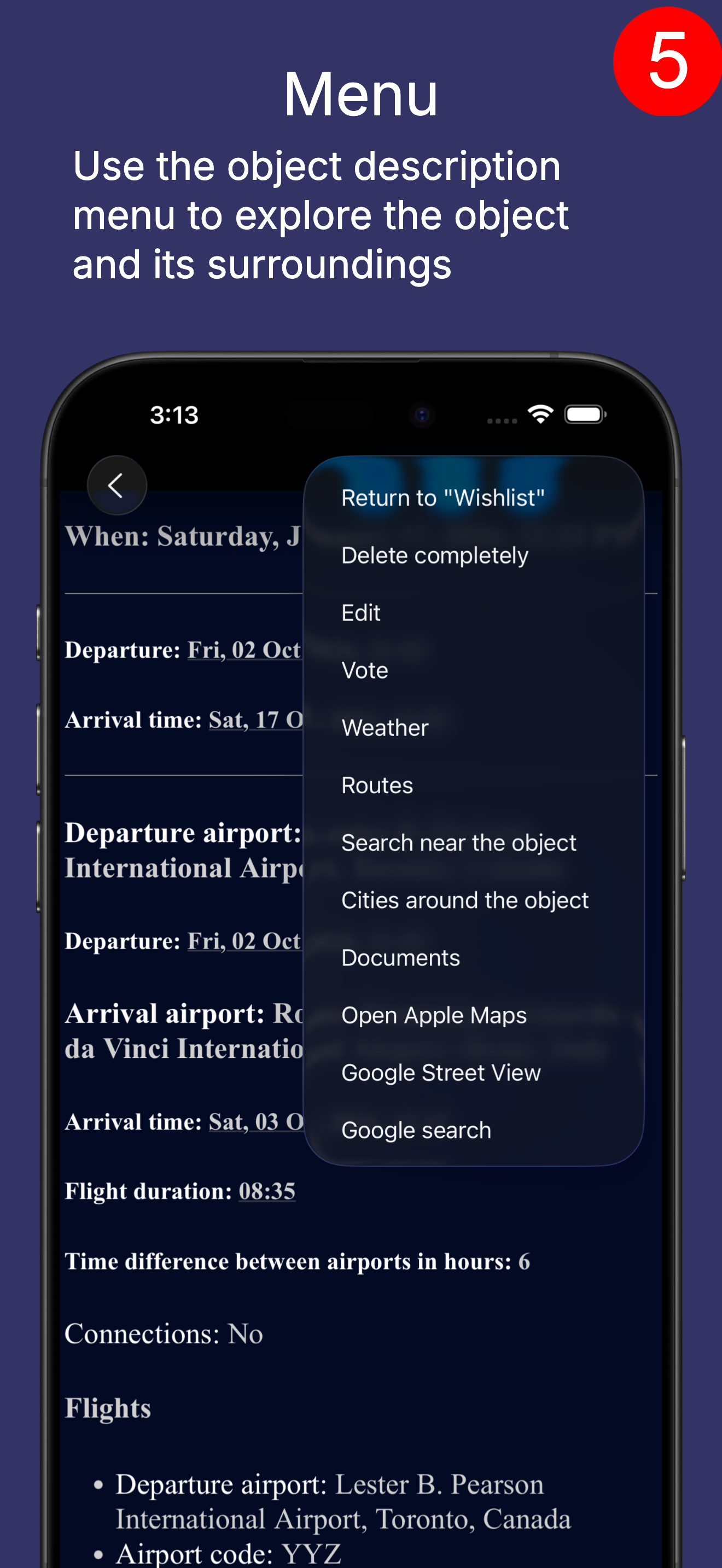
- Description. A description of the object, where one exists.
- Photos. Photographs of the object, where there are any.
- In Pro mode, for some objects - a link to offers on an external site where the object can be booked (a flight, a hotel, a car and so on).
- Map. Opens the app's own maps, where you see the objects of your trip. This helps you take in the whole picture. The maps have settings (in the menu) for which objects you want to see there. Once the trip is under way, for instance, you can turn off objects that are still in the "Wishlist" (Pro mode).
- Move to the "Itinerary" (Light mode). You can move a restaurant you have found, say, into the "Itinerary".
- Weather. You can look at the forecast for the dates you will be at this place. The forecast runs two weeks ahead. If the date is a month away, say, you will be shown a statistical forecast based on data from previous years.
- Routes. You get a list of the objects in the trip (a filter can be applied). These are the same objects as in the "Maps" menu. You see the straight-line distance to a given object and the direction. For each object you can also: check the fare and route for an Uber; see the route in Google Navigator; check the weather forecast; open external maps at that object (Google or Apple, depending on the platform), and so on. "Routes" and "Maps" together help you understand the geography of the trip.
- Search around. You can search around an object for many different types of place. A beach near your hotel, for example. And the beach you find is a trip object just like the hotel or the flight. Which means it has exactly the same menu, so you can add it to the "Itinerary" in the same way, or search for a restaurant near the beach you just found, which can in turn become an object of the trip.
- Cities around. You see the towns and cities around the object and can look at information about each one and at the attractions in it.
- Excursions. Interesting places and excursions in the area around this object.
- Apple or Google maps. Opens Apple or Google maps, depending on the platform. These are powerful tools that can also help you make sense of the area around an object.
- Google Street View. Opens Google Street View at this place. If Google has no such imagery for the place, it may show photographs instead.
- Photos 2. These are photographs taken within 500 metres of this place, where there are any. This too helps you get a sense of the place you are going to.
- Google search. Opens Google with a ready-made query. There too you may find something useful about the object. For a flight you will get the airport's website, with the most up-to-date information about the airport. Or reviews of a restaurant, for a restaurant. Or a description for an attraction, and so on.
- Copy the coordinates to the clipboard. You can send the object's coordinates to somebody else.
- Main menu. On the enot66.com site you can switch from a hotel description to, say, a flight search simply by clicking the "Flights" tab, and then go back to the hotel description by clicking the "Accommodation" tab. In a mobile app screen state cannot be kept. But you can choose this menu item, go to the app's home screen, look at flights, and then come back to the hotel description.
Platforms
You can install the app for iOS or Android, or use the website.
The website helps with planning only, because travel assistance depends on where you physically are, and people do not usually walk around holding a computer.

Web
Planning
The website is not designed for mobile devices and does not support the travel assistance features. Please use the mobile app for your platform instead.

Android
Planning and travel assistance


iOS
Planning and travel assistance

Sign in to the site
The website is not designed for mobile devices and does not support the travel assistance features. Please use the mobile app for your platform instead.